Azure App Registration Guide
This is the procedure for registering the Azure app to be used in the SDF service in the customer's tenant.
1. Overview
If you do not use the common app, register the Azure app for use in the SDF service separately in the customer tenant.
After the app registration and API usage permission agreement are all completed, the issuedApp IDWowClient PasswordIf you pass it on to the SOFTCAMP person in charge, it will be reflected in the service settings.
The client secret can only be verified at the time of creation and cannot be retrieved again afterwards. Please use a separate secure channel instead of plaintext channels such as email when transmitting it.
2. App Registration
2.1 Azure Portal Login
Azure Portal(Azure Portal) inAdministrator AccountLog in with.
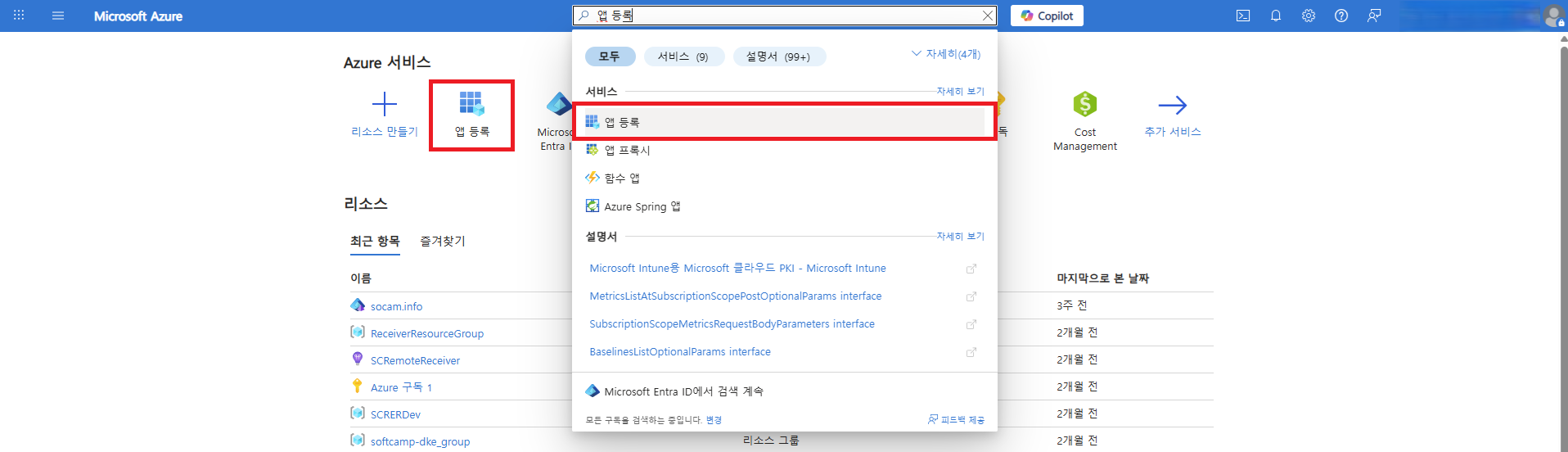
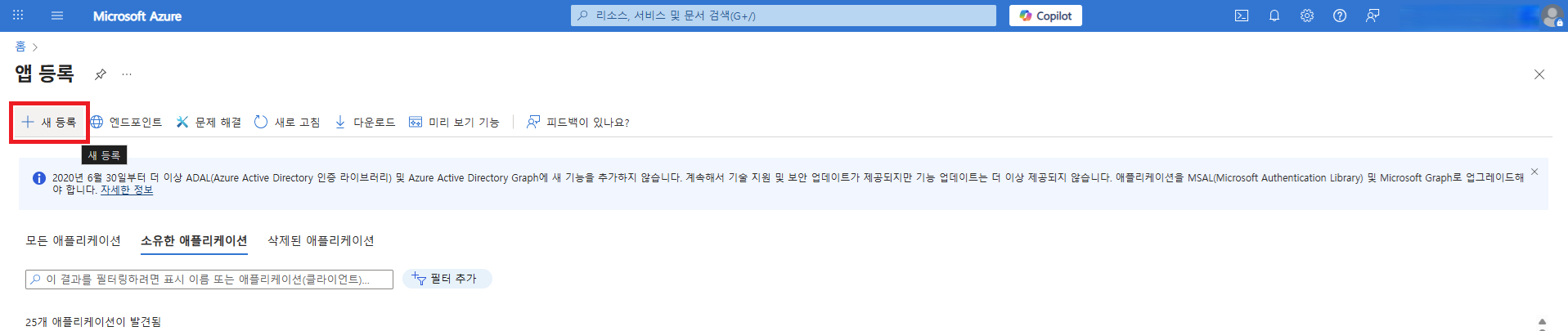
App RegistrationSelect a menu andNew RegistrationYou can move to the application registration page through the button.
2.2 App Registration Information
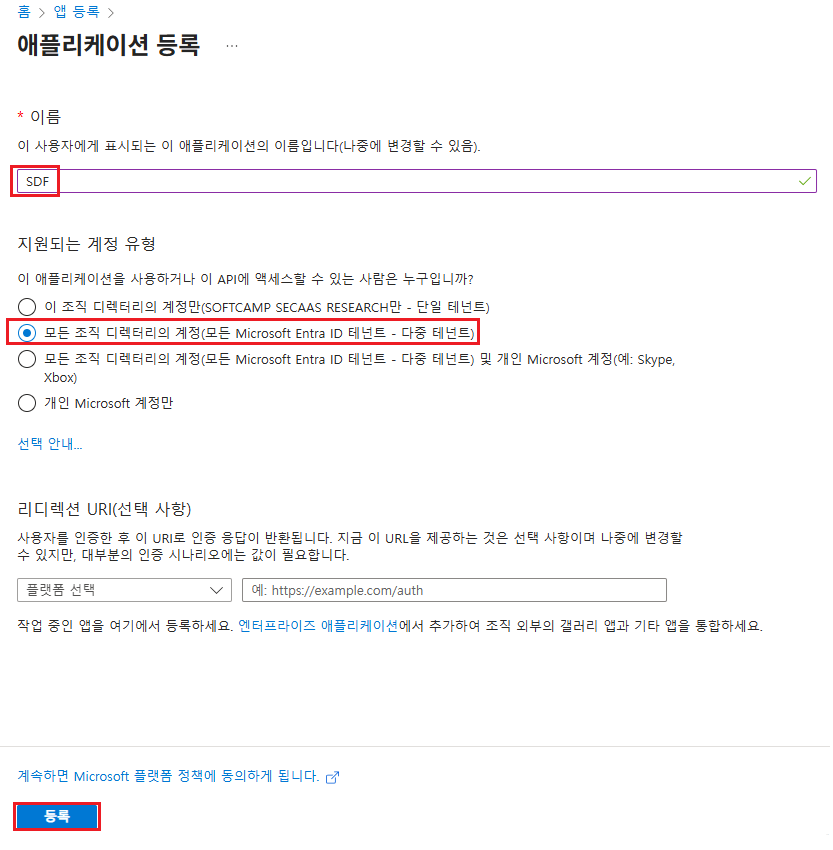
| item | value |
|---|---|
| name | SDF |
| Account Type | Multi-Tenant |
RegistrationClick the button to register the application.
2.3 App ID Information Check
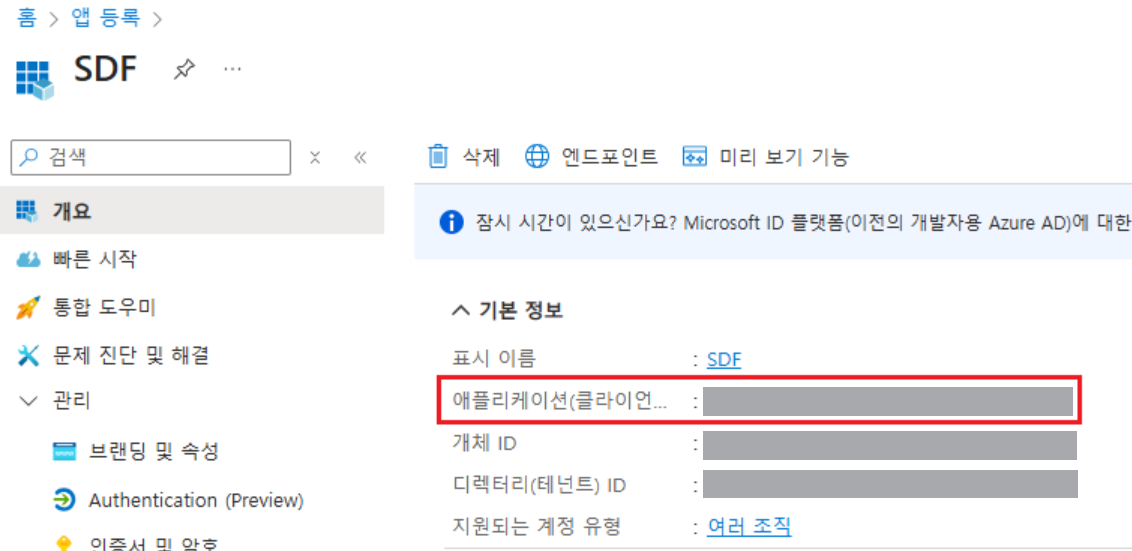
Once the registration is complete, on the app overview screenApplication (Client) IDWowDirectory (Tenant) IDYou can check it. Please note it down separately as it will be used in the next steps.
3. Client Password Setting
3.1 Azure CLI Installation
To set the password used for service authentication, install the Azure CLI.
- Reference: Installing Azure CLI on Windows (Microsoft Official Documentation)
3.2 Azure CLI Login (PowerShell)
PowerShell toAdministrator privilegesafter executing withAzure administrator accountLog in with __PH_0__. If there are multiple subscriptions for the tenant, select the appropriate subscription.
az login
3.3 Create New Client Secret
Set a new client password with an expiration period. If no expiration period is set, it will be set to 1 year from the creation time.
az ad app credential reset --id {appId} --append --end-date {end-date}
| parameter | Explanation |
|---|---|
| appId | App ID |
| append | Generate a new password while keeping the existing password. Removing this parameter will delete the existing password. |
| end-date | Password expiration time (format: 'YYYY-MM-DD') example: '2028-01-22' |
3.4 Storing Password Values
After generating the client secret, check the outputted password value and save it separately.
{
  "appId": "{appId}",
  "password": "{generated client secret}",   // appSecret
  "tenant": "{tenantId}"
}
3.5 Password Generation Verification
Check if the password has been generated successfully.
az ad app credential list --id {appId}
PS C:\> az ad app credential list --id {appId}
[
  {
    "customKeyIdentifier": null,
    "displayName": null,
    "endDateTime": "2028-01-22T00:00:00Z",
    "hint": "***",
    "keyId": "{keyId}",
    "secretText": null,
    "startDateTime": "2026-01-22T05:52:37Z"
  }
]
3.6 Client Password Generation Full Execution Process Example
PS C:\> az login
Select the account you want to log in with.

Retrieving tenants and subscriptions for the selection...

[Tenant and subscription selection]

No     Subscription name    Subscription ID    Tenant
-----  -------------------  -----------------  ----------------
[1] *  {subscription name}            {subscription ID}           {tenant name}
[2]    {subscription name}            {subscription ID}           {tenant name}

The default is marked with an *.

Select a subscription and tenant (Type a number or Enter for no changes): 1

PS C:\> az ad app credential reset --id {appId} --append --end-date '2028-01-22'
The output includes credentials that you must protect. Be sure that you do not include these credentials in your code or check the credentials into your source control.
{
  "appId": "{appId}",
  "password": "{generated client secret}",
  "tenant": "{tenantId}"
}

PS C:\> az ad app credential list --id {appId}
[
  {
    "customKeyIdentifier": null,
    "displayName": null,
    "endDateTime": "2028-01-22T00:00:00Z",
    "hint": "***",
    "keyId": "{keyId}",
    "secretText": null,
    "startDateTime": "2026-01-22T05:52:37Z"
  }
]
3.7 Client Password Generation Verification
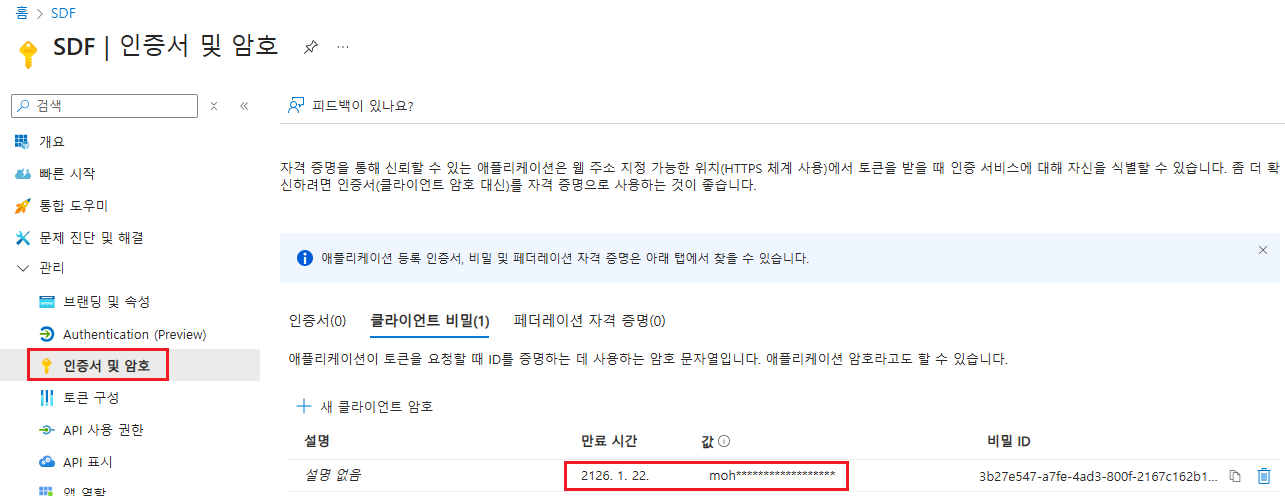
In the Azure Portal's app registration screenCertificate and SecretWhen you go to the menu, the generated client secret will be displayed in the list.
4. Add API Permissions
4.1 List of Permissions to be Added
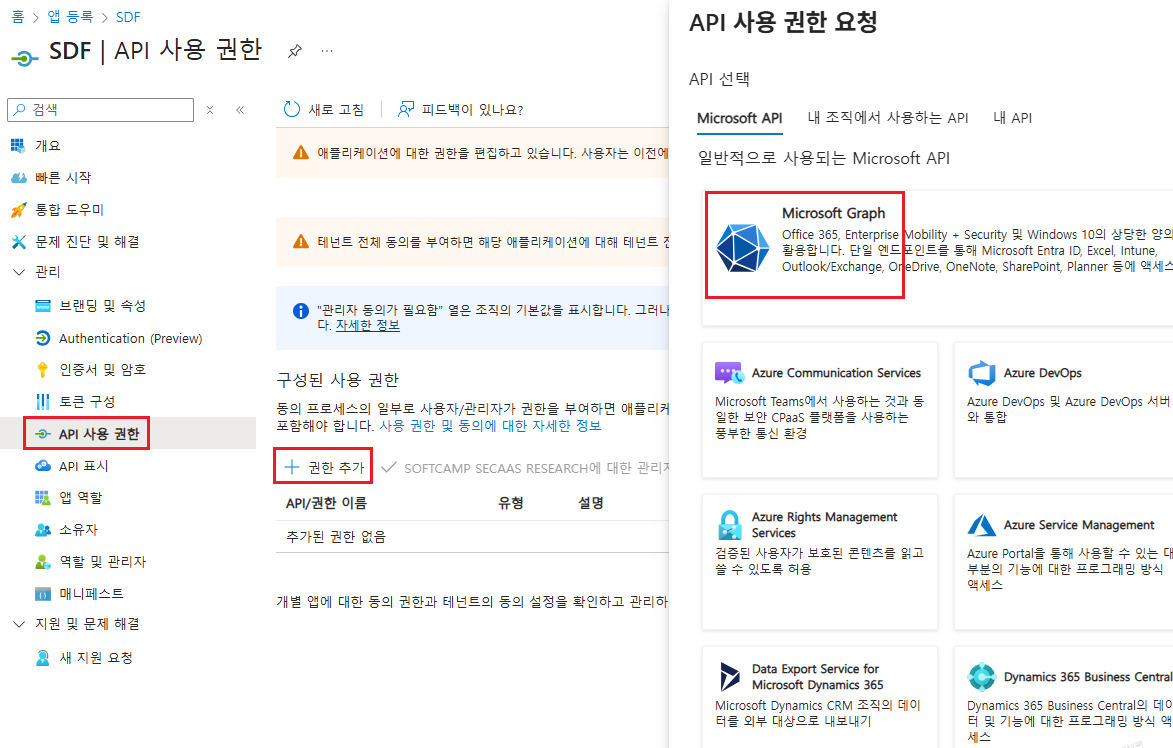
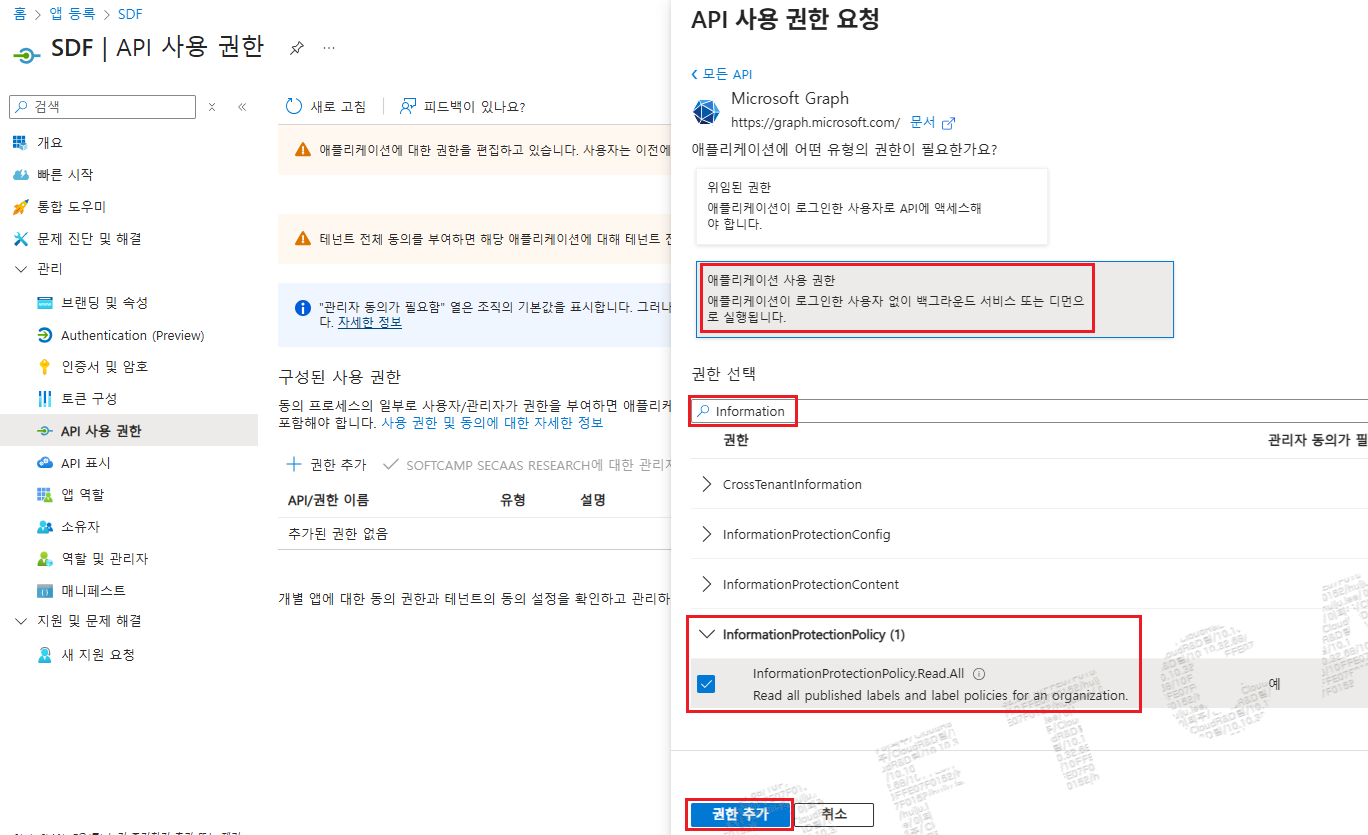
Microsoft Graph
| API/Permission Name | Type | Administrator consent is required. | Permission Description |
|---|---|---|---|
| InformationProtectionPolicy.Read.All | Application | Yes | Obtaining the protection template ID of the AIP label |
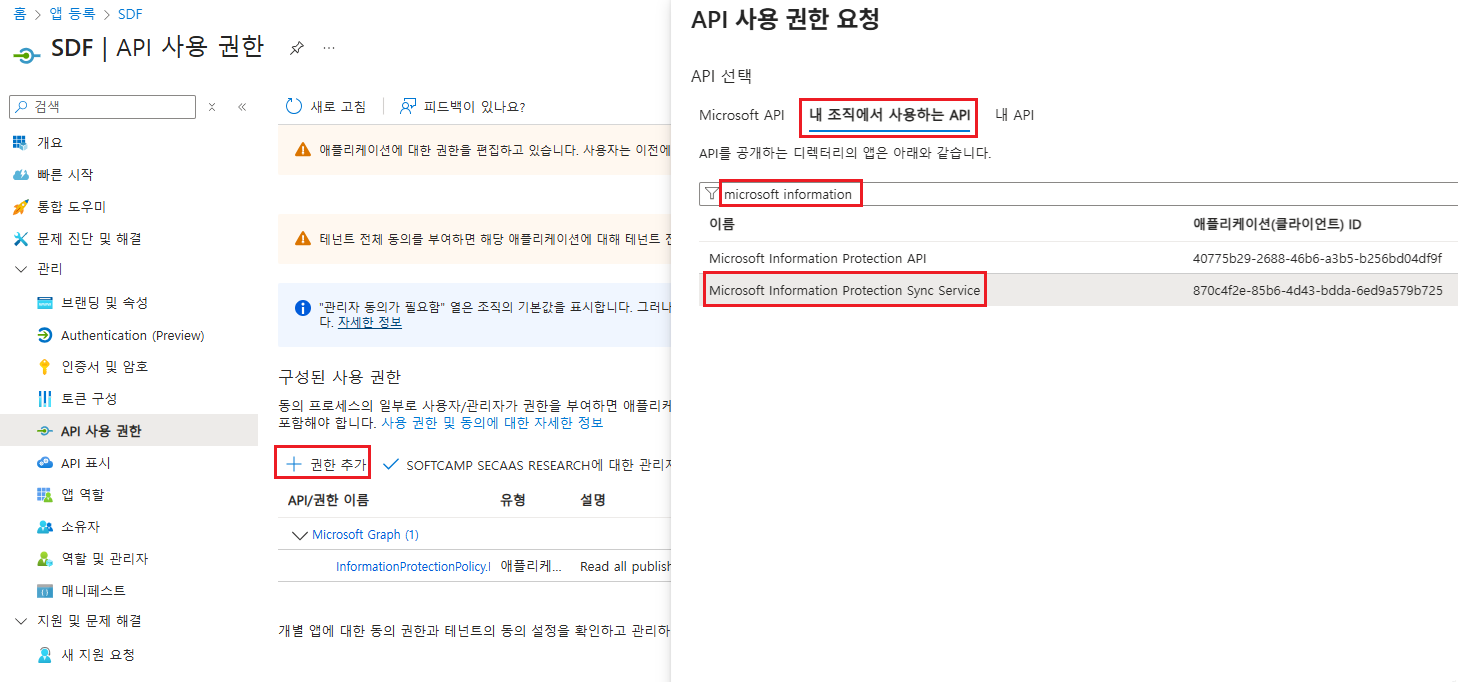
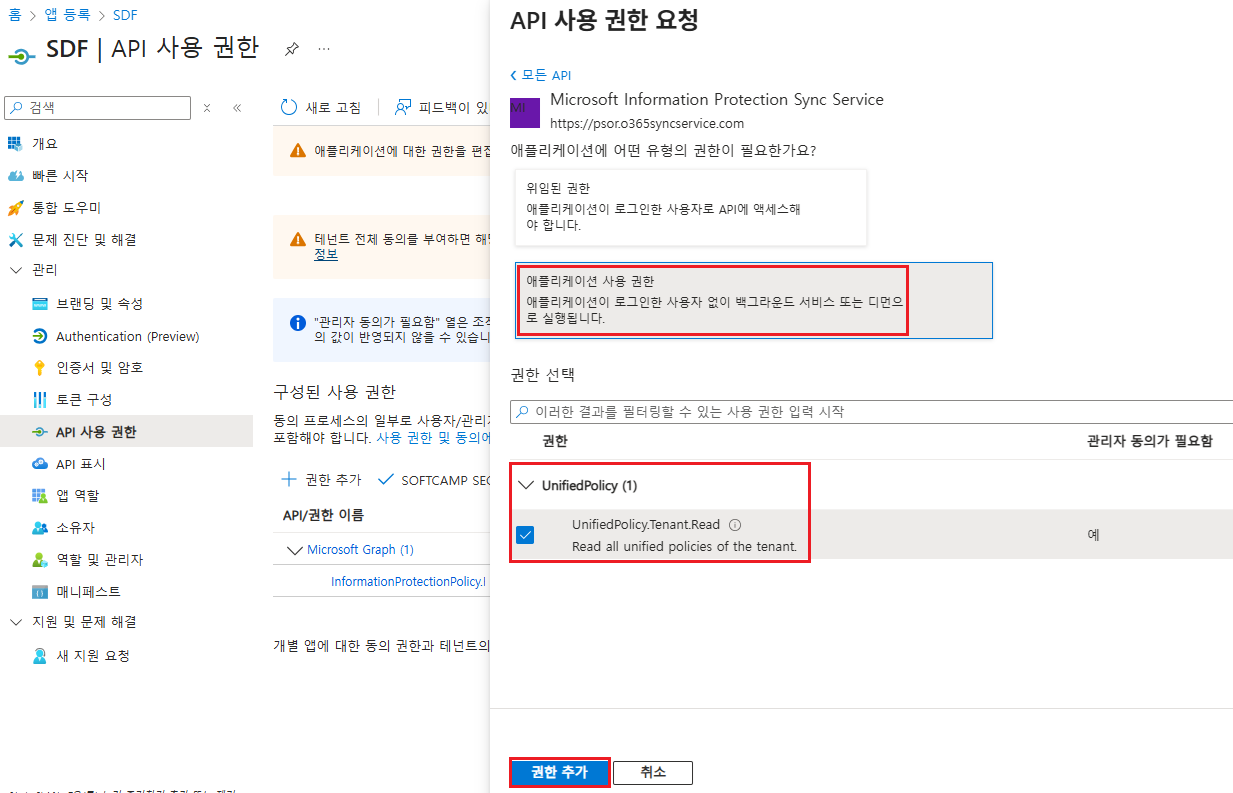
Microsoft Information Protection Sync Service
| API/Permission Name | Type | Administrator consent is required. | Permission Description |
|---|---|---|---|
| UnifiedPolicy.Tenant.Read | Application | Yes | Read all integration policies that the user has access to. |
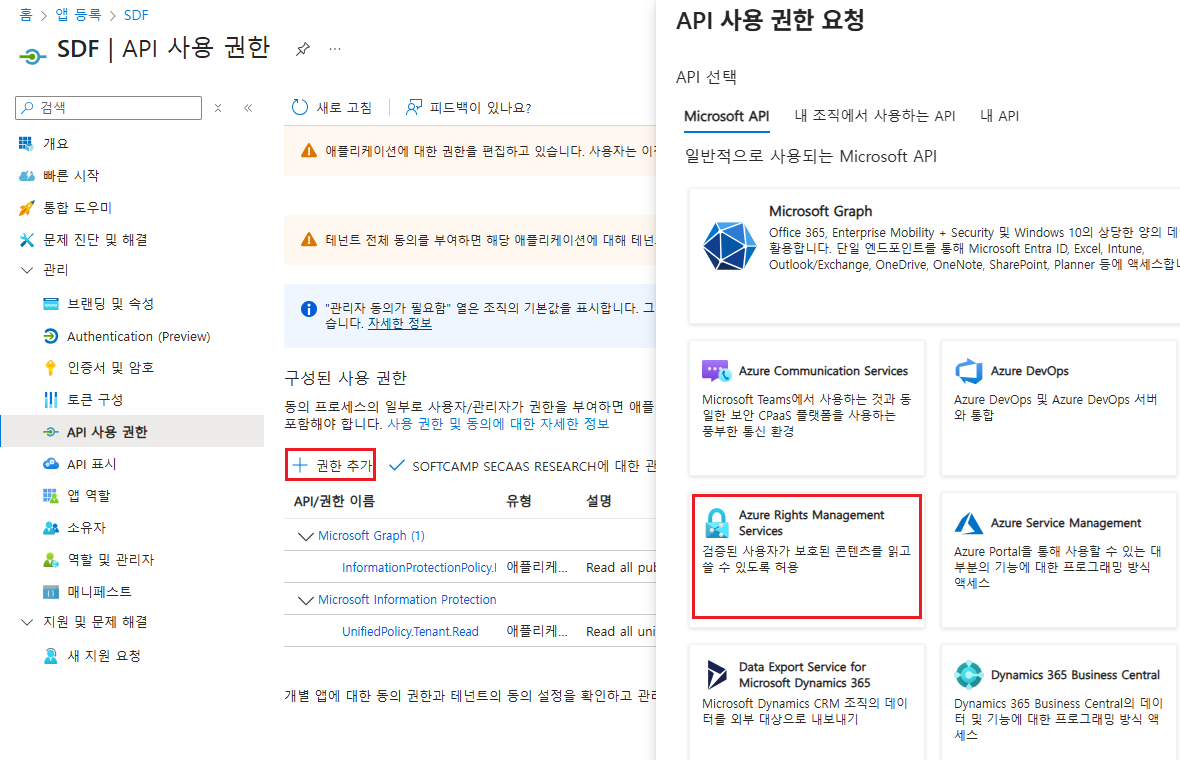
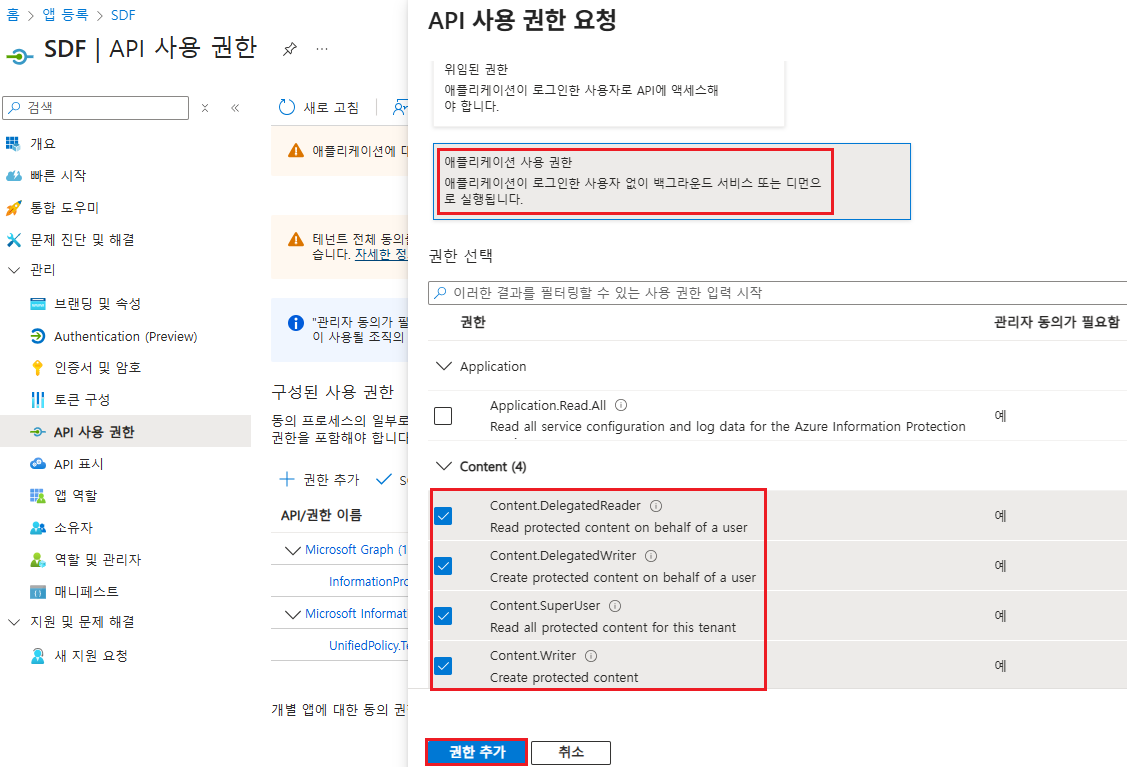
Azure Rights Management Services
| API/Permission Name | Type | Administrator consent is required. | Permission Description |
|---|---|---|---|
| Content.DelegatedReader | Application | Yes | Reading protected content on behalf of the user |
| Content.DelegatedWriter | Application | Yes | Generating protected content on behalf of the user |
| Content.SuperUser | Application | Yes | Read all protected content of the tenant |
| Content.Writer | Application | Yes | Generating protected content |
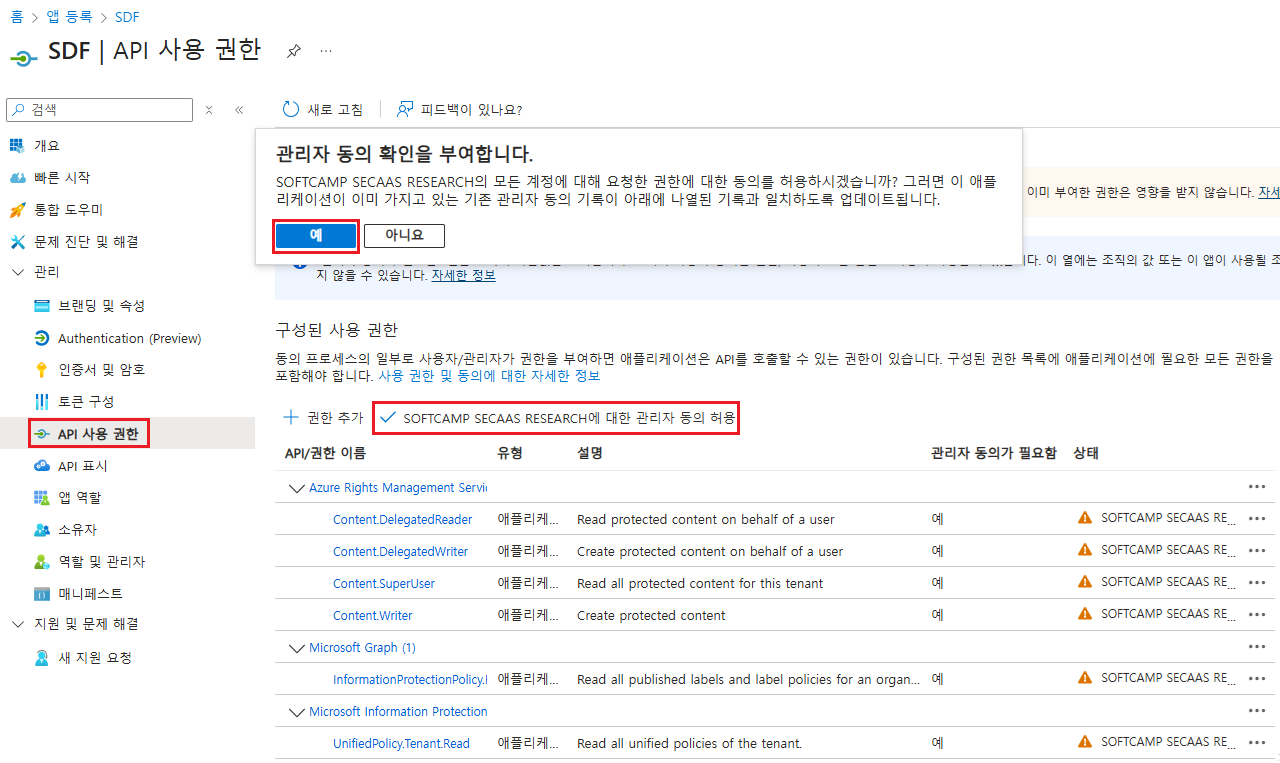
4.2 Allow Admin Consent
Add API permissions andAllow administrator consentYou must perform.
5. Delivery Items
I will convey the following items to the SOFTCAMP representative.
| item | Check Location |
|---|---|
| Application (Client) ID | App Overview Screen |
| Directory (Tenant) ID | App Overview Screen |
| Client Password | 3.4 Step Output Value |
| Password expiration date | 3.3 The end-date specified in the step |